EPS (Enterprise Project Structure) in Primavera P6 Explained Simply
Learn EPS in Primavera P6 with simple examples, steps, and real project insights. Perfect guide for engineers and beginners.
 Suraj Manikpuri
EPS (Enterprise Project Structure) in Primavera P6 – Simple Guide for Engineers
Introduction
When I first started using Primavera P6, I made a very common mistake…
👉 I directly started creating activities without setting up EPS properly.
Result?
Everything became messy — projects were scattered, reports confusing, and tracking almost impossible.
That’s when I realized:
👉 EPS (Enterprise Project Structure) is not just a feature… it’s the foundation of Primavera P6.
If you understand EPS properly, half of your planning problems are already solved.
Let’s break it down in a simple, practical way.
What is EPS in Primavera P6?
EPS (Enterprise Project Structure) is a hierarchical framework used to organize all projects within an organization.
In simple words:
👉 EPS is like a folder system where all your projects are stored in a structured way.
Think like this:
↓
Region / Plant
↓
Department
↓
Project
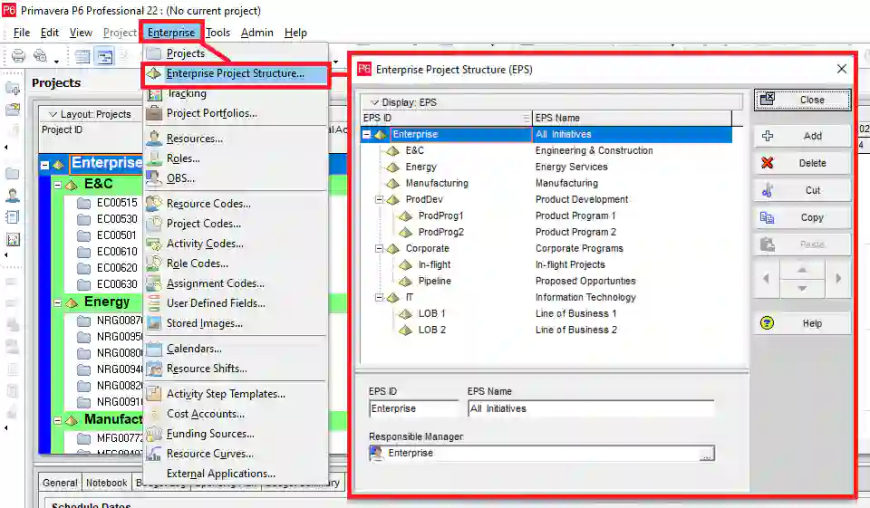
Without EPS, managing multiple projects becomes chaotic.
Why EPS is Important in Real Projects
Let’s take a practical example from your kind of work 👇
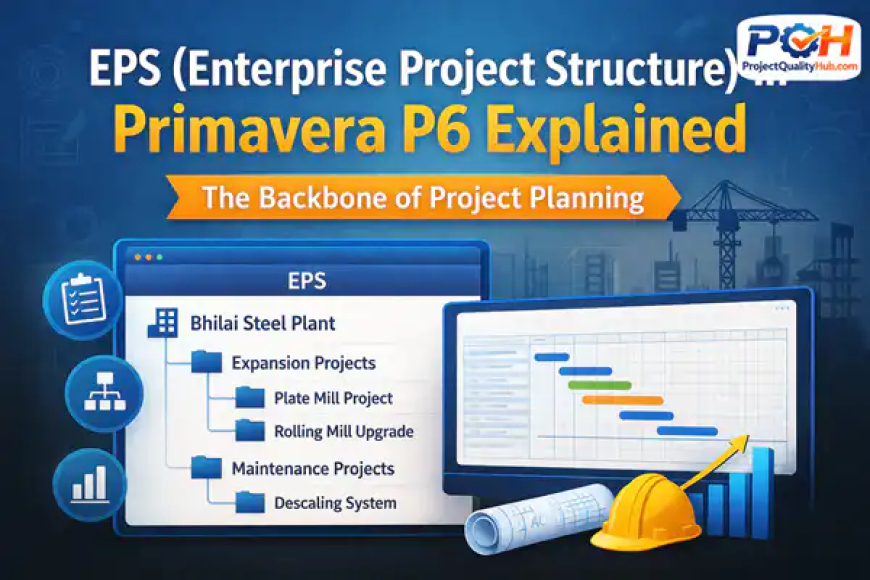
Example: Steel Plant Project
Suppose you are handling multiple projects at a plant like:
-
Plate Mill Expansion
-
Rolling Mill Upgrade
-
Descaling System Installation
Using EPS, you can structure it like:
├── Expansion Projects
│ ├── Plate Mill Project
│ └── Rolling Mill Upgrade
└── Maintenance Projects
└── Descaling System
👉 Now everything is organized, easy to track, and easy to report.
Key Features of EPS in Primavera P6
1. Hierarchical Structure
EPS allows multi-level structure:
-
Level 1: Organization
-
Level 2: Location
-
Level 3: Project
2. Centralized Project Management
All projects can be viewed in one place.
3. Security Control
Access can be given based on EPS level.
👉 Example:
Site engineer → only his project
Manager → all projects
4. Easy Reporting
Reports can be generated at:
-
Project level
-
Department level
-
Company level
EPS vs WBS (Most Common Confusion)
Many beginners confuse EPS with WBS.
Let’s clear it simply:
| Feature | EPS | WBS |
|---|---|---|
| Level | Organization level | Project level |
| Purpose | Organize projects | Break project work |
| Example | Plant → Project | Civil → Mechanical |
👉 EPS = Project grouping
👉 WBS = Work breakdown
Step-by-Step: How to Create EPS in Primavera P6
Let’s keep it practical.
Step 1: Open Enterprise Menu
Go to → Enterprise → EPS
Step 2: Add New EPS Node
Click “Add” and create:
-
Company name
-
Plant name
Step 3: Create Sub-levels
Add multiple levels like:
-
Department
-
Project category
Step 4: Assign Responsible Manager
Link OBS (Organizational Structure)
Step 5: Save Structure
Now your EPS is ready.
👉 After this, you can start creating projects under it.
Practical Case Study (Real Use)
In one EPC project, we had:
-
12 ongoing projects
-
3 locations
-
Multiple contractors
Initially, everything was mixed.
After implementing EPS:
✔ Projects were grouped properly
✔ Reporting became faster
✔ Management visibility improved
✔ Delay tracking became easier
👉 This single step improved planning efficiency by almost 40%
Advantages of EPS
✔ Organizes multiple projects clearly
✔ Improves reporting structure
✔ Enables better access control
✔ Makes navigation easy
✔ Essential for large organizations
Disadvantages of EPS
❌ Initial setup takes time
❌ Wrong structure creates confusion
❌ Needs planning experience
Common Mistakes Beginners Make
1. Skipping EPS setup
Directly jumping into activities → big mistake
2. Creating too many levels
Overcomplication reduces clarity
3. Poor naming convention
Names like “Project1, Project2” → confusing
4. Not linking OBS
Responsibility becomes unclear
Expert Tips (From Real Experience)
👉 Keep EPS simple and logical
👉 Use clear naming (Plant > Project > Phase)
👉 Don’t over-engineer the structure
👉 Align EPS with your organization structure
👉 Always finalize EPS before starting planning
Conclusion
So, what is EPS in Primavera P6?
It is the backbone of project organization — the structure that holds everything together.
Without EPS, even the best schedules can fail.
With proper EPS:
✔ Projects become organized
✔ Reporting becomes easy
✔ Planning becomes powerful
👉 In simple words:
EPS is the starting point of professional project planning.
If you’re serious about mastering Primavera P6, start with EPS — not activities.
FAQs
1. What is EPS in Primavera P6?
EPS is a hierarchical structure used to organize projects within an organization.
2. Why is EPS important?
It helps in organizing projects, improving reporting, and managing access control.
3. What is the difference between EPS and WBS?
EPS organizes projects, while WBS breaks down project work.
4. Can I change EPS after creating projects?
Yes, but it is better to define it correctly from the beginning.
5. How many levels should EPS have?
Keep it simple — usually 2–4 levels are enough.
Related Articles
- What is Primavera P6? Complete Guide for Beginners
- How to Download Primavera P6 for Free in 2026 (Step-by-Step Guide for Engineers & Students)
- PMP Certification Guide: Benefits, Eligibility & Exam
- Primavera P6 Index Explained for Beginners