Primavera P6 File Menu Explained: Complete Beginner Guide - Chapter 1
Learn every option in the Primavera P6 File Menu (Alt+F) including New, Open, Import, Export, Send Project, and Print with practical examples.
 Suraj Manikpuri
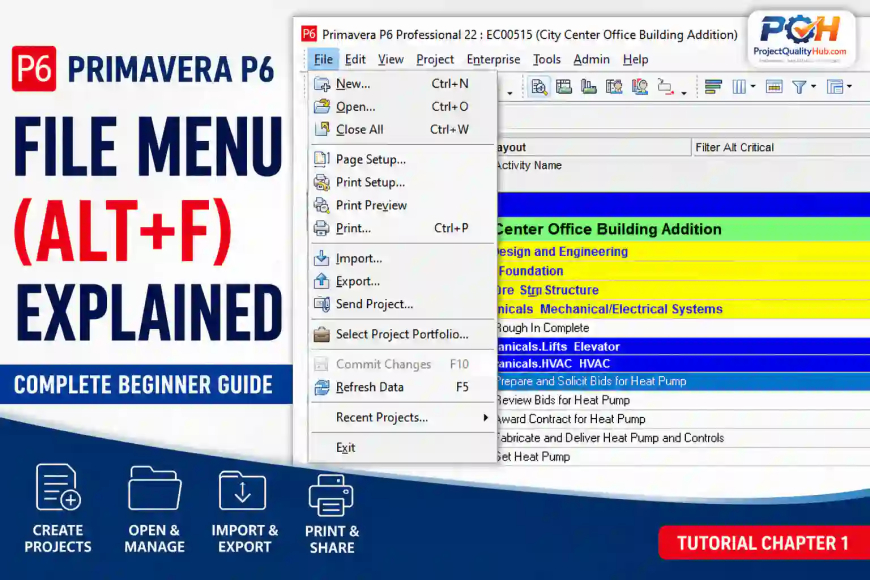
Primavera P6 File Menu (Alt+F) Explained – Complete Beginner Guide - Chapter 1 (Menu bar)
Introduction
When beginners start learning Primavera P6, they usually focus on activities, relationships, and scheduling. However, one of the most important areas of the software is often overlooked—the File Menu (Alt+F).
The File Menu acts as the gateway for creating projects, opening schedules, importing files, exporting schedules, printing reports, and sharing project data with clients and consultants.
In real-world EPC, construction, steel plant, shutdown, and commissioning projects, planning engineers frequently use File Menu functions to exchange schedules with contractors, submit baseline schedules, share updates with consultants, and maintain project backups.
If you understand the File Menu properly, you can manage project data more efficiently and avoid many common mistakes that beginners make.
What is the File Menu in Primavera P6?
The File Menu is the first menu available in Primavera P6.
You can access it by:
File (Alt + F)It contains commands related to:
- Creating projects
- Opening projects
- Importing schedules
- Exporting schedules
- Sending project files
- Printing reports
- Managing portfolios
- Refreshing data
Think of the File Menu as the "Project Data Management Center" of Primavera P6.
Use of File Menu in Primavera P6
The File Menu is primarily used whenever project information needs to be:
- Created
- Opened
- Shared
- Imported
- Exported
- Printed
- Refreshed
Typical Real Project Uses
| Situation | File Menu Function |
|---|---|
| Receive schedule from contractor | Import |
| Submit baseline to client | Export |
| Share schedule with consultant | Send Project |
| Open existing project | Open |
| Print progress report | |
| Create new project | New |
| Switch project portfolio | Select Project Portfolio |
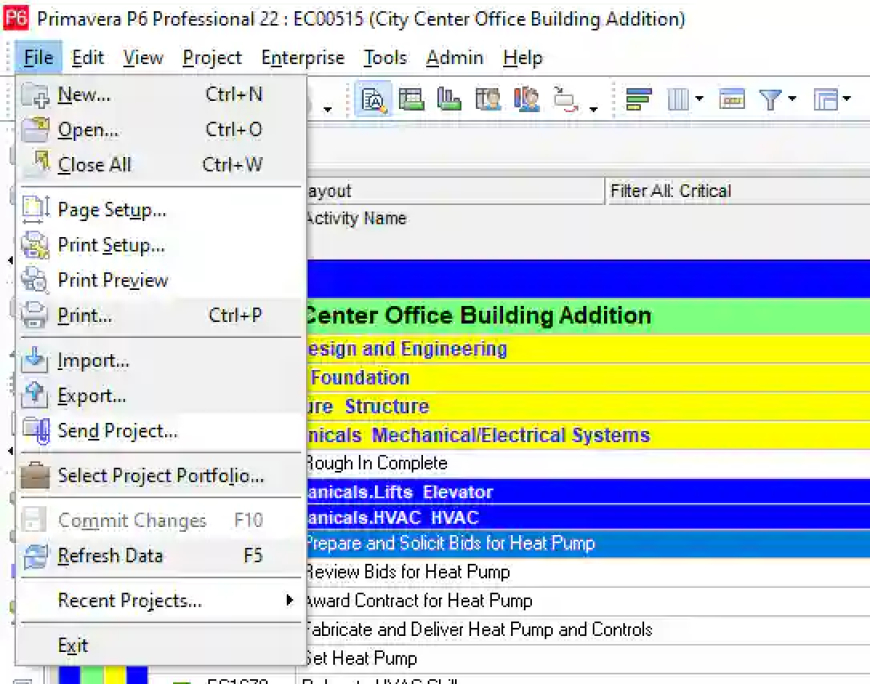
Primavera P6 File Menu Options Explained
The File Menu in Primavera P6 Professional contains the following options:
1. New (Ctrl + N)
Purpose
Used to create a new project or data object.
File → NewPractical Use
Suppose your company receives a new project:
- Steel Plant Expansion
- Building Construction
- Pipeline Installation
The first step is creating a new project.
Why Important
Every schedule starts from the New option.
2. Open (Ctrl + O)
Purpose
Used to open an existing project.
Practical Example
A consultant sends you an updated project schedule.
You open Primavera P6 and select:
File → Opento access the schedule.
Field Application
Planning engineers use this option multiple times every day.
3. Close All (Ctrl + W)
Purpose
Closes all currently opened projects.
When Useful
Suppose multiple projects are opened:
- Blast Furnace Project
- Coke Oven Project
- Utility Building Project
You can close them simultaneously.
Benefit
Keeps Primavera organized and improves performance.
4. Page Setup
Purpose
Configures printing settings.
Options Include
- Page size
- Orientation
- Margins
- Header/Footer
Practical Use
Before printing a baseline schedule for client approval.
5. Print Setup
Purpose
Selects printer and printing configuration.
Typical Uses
- A1 Schedule Printing
- A3 Look-Ahead Schedule
- Weekly Progress Reports
6. Print Preview
Purpose
Allows users to view the print output before printing.
Why Important
Prevents:
- Truncated Gantt charts
- Missing columns
- Incorrect page breaks
Professional Tip
Always use Print Preview before submitting schedules.
7. Print (Ctrl + P)
Purpose
Prints project schedules and reports.
Common Uses
- Weekly review meetings
- Progress meetings
- Management presentations
- Client submissions
Import Option in Primavera P6
Purpose
Used to bring external project data into Primavera P6.
Menu Path
File → ImportSupported Formats
- Primavera XER
- Primavera XML
- Microsoft Project
- Spreadsheet formats
Real Project Example
A subcontractor submits a schedule in XER format.
You import it into Primavera P6 for review. Oracle documentation explains that XER import supports creating new projects, updating existing projects, replacing projects, or adding imported data into an existing WBS structure.
Common Mistake
Always verify:
- Calendar mapping
- Resource mapping
- Project codes
after importing.
Export Option in Primavera P6
Purpose
Used to send Primavera schedules outside the system.
Menu Path
File → ExportCommon Export Formats
- XER
- XML
- Excel
- Contractor XER
Real Project Example
You need to submit a revised baseline schedule to MECON or a client.
Export the project as an XER file and send it for review. Oracle recommends XER format for project exchange and backup between Primavera users.
Professional Tip
Before exporting:
- Schedule project
- Verify critical path
- Check relationships
- Save baseline
Send Project Option
Purpose
Exports and emails a project automatically.
Menu Path
File → Send ProjectPractical Use
Suppose the client urgently requests the latest schedule.
Instead of manually exporting and attaching the file:
File → Send Projectcreates an XER file and attaches it to an email automatically.
Real-Life Benefit
Saves time during project review meetings.
Select Project Portfolio
Purpose
Allows users to switch between project portfolios.
Practical Example
A company manages:
- Steel Plant Projects
- Infrastructure Projects
- Building Projects
Each portfolio can be viewed separately.
Benefit
Better project organization.
Commit Changes
Purpose
Saves changes to the database.
Why Important
In shared environments, changes may not be visible until committed.
Practical Example
After updating:
- Activity durations
- Progress percentages
- Relationships
commit the changes to ensure data is stored.
Refresh Data (F5)
Purpose
Reloads project data from the database.
Practical Use
Useful when:
- Multiple planners are working simultaneously.
- Another engineer has updated the schedule.
Benefit
Shows the latest project information.
Recent Projects
Purpose
Displays recently opened projects.
Benefit
Quick access without searching through portfolios.
Useful For
Planning engineers working on multiple projects daily.
Exit
Purpose
Closes Primavera P6.
Professional Tip
Before exiting:
✔ Save layouts
✔ Commit changes
✔ Backup important schedules
✔ Export baseline if required
Practical Example from a Steel Plant Project
Consider a Blast Furnace Modernization Project.
Scenario
Client requests:
- Updated schedule
- Recovery plan
- Critical path analysis
Planning Engineer Workflow
- Open project using File → Open
- Update progress
- Run schedule calculation
- Print preview review
- Export XER
- Send Project to client
- Commit changes
- Refresh database
This entire workflow relies heavily on the File Menu.
Best Practices for Using the File Menu
Always Backup Before Major Changes
Export an XER file before:
- Rescheduling
- Large updates
- Resource loading
Verify Imports Carefully
Check:
- Calendars
- Resources
- Codes
- Relationships
Use Print Preview
Never print directly.
Keep Project Copies
Maintain:
- Baseline Version
- Monthly Version
- Recovery Version
Common Mistakes Beginners Make
Importing Without Backup
Always keep original files.
Replacing Wrong Project
Double-check project IDs.
Printing Without Preview
Can result in missing schedule data.
Not Refreshing Data
Leads to working with outdated information.
Forgetting to Commit Changes
May result in unsaved project updates.
Quick Reference Table
| File Menu Option | Primary Use |
|---|---|
| New | Create Project |
| Open | Open Existing Project |
| Close All | Close Projects |
| Page Setup | Configure Printing |
| Print Setup | Printer Configuration |
| Print Preview | Review Output |
| Print Schedule | |
| Import | Bring External Data |
| Export | Share Project Data |
| Send Project | Email Project |
| Select Project Portfolio | Portfolio Management |
| Commit Changes | Save Database Updates |
| Refresh Data | Reload Latest Data |
| Recent Projects | Quick Access |
| Exit | Close Primavera |
Conclusion
The Primavera P6 File Menu may look simple, but it is one of the most frequently used menus in daily project planning activities. Whether you are creating a new schedule, importing contractor updates, exporting baseline programs, printing reports, or sharing schedules with clients, almost every project workflow begins with the File Menu.
For beginners, mastering these options builds confidence and improves efficiency. For experienced planners, understanding the practical application of each File Menu command helps ensure accurate project data management and smooth communication across project stakeholders.
Frequently Asked Questions (FAQ)
What is the shortcut key for File Menu in Primavera P6?
The shortcut key is Alt + F.
Which File Menu option is used to import a project?
Use File → Import.
Which format is commonly used to exchange Primavera schedules?
The most commonly used format is XER.
What is the use of Send Project in Primavera P6?
It automatically creates an XER file and attaches it to an email message.
Why should I use Print Preview before printing?
It helps identify formatting issues, missing columns, and page break problems before printing.
What is Refresh Data used for?
Refresh Data reloads the latest information from the Primavera database.
Related Articles
Primavera P6 Edit Menu Explained: Complete Beginner Guide - Chapter 2
How to Download Primavera P6 for Free in 2026 (Step-by-Step Guide for Engineers & Students)
What is Primavera P6? Complete Guide for Beginners