Primavera P6 Edit Menu Explained: Complete Beginner Guide - Chapter 2
Learn every option in the Primavera P6 Edit Menu (Alt+E), including Cut, Copy, Paste, Add, Delete, Assign, Find, Replace, and User Preferences.
 Suraj Manikpuri
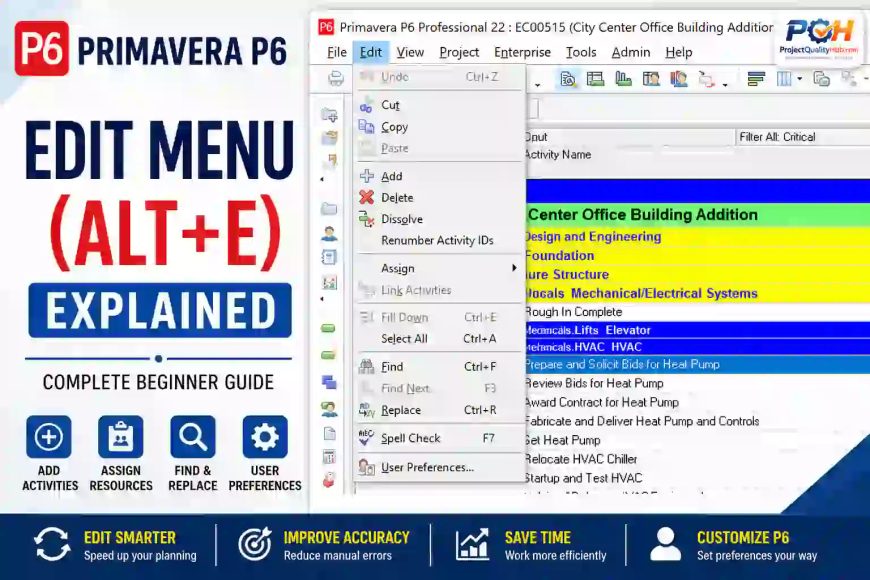
Primavera P6 Edit Menu (Alt+E) Explained – Tutorial Chapter 2
After understanding the File Menu in Primavera P6 in chapter 1, the next important menu every planning engineer should learn is the Edit Menu (Alt+E).
Many beginners think the Edit Menu is only for Cut, Copy, and Paste. In reality, it contains several powerful functions used daily by planning engineers while creating schedules, modifying activities, assigning resources, renumbering activity IDs, searching activities, and configuring personal settings.
Whether you are preparing a construction schedule, steel plant shutdown plan, equipment erection schedule, or commissioning network, the Edit Menu helps you perform modifications quickly and accurately.
In practical project planning, a planner may use Edit Menu options dozens or even hundreds of times per day. Understanding these functions properly can significantly improve productivity and reduce schedule preparation time.
Use of Edit Menu in Primavera P6
The Edit Menu is primarily used for:
- Creating activities
- Modifying schedule data
- Copying project information
- Deleting unwanted records
- Assigning resources
- Renumbering activities
- Searching project data
- Personalizing Primavera settings
Access Method
You can access the Edit Menu by:
Edit → Alt + ETypical Applications
| Activity | Edit Menu Function |
|---|---|
| Create new activity | Add |
| Remove unwanted activity | Delete |
| Duplicate schedule data | Copy & Paste |
| Assign resources | Assign |
| Search activities | Find |
| Modify text | Replace |
| Standardize IDs | Renumber Activity IDs |
| Configure Primavera | User Preferences |
Primavera P6 Edit Menu Options Explained
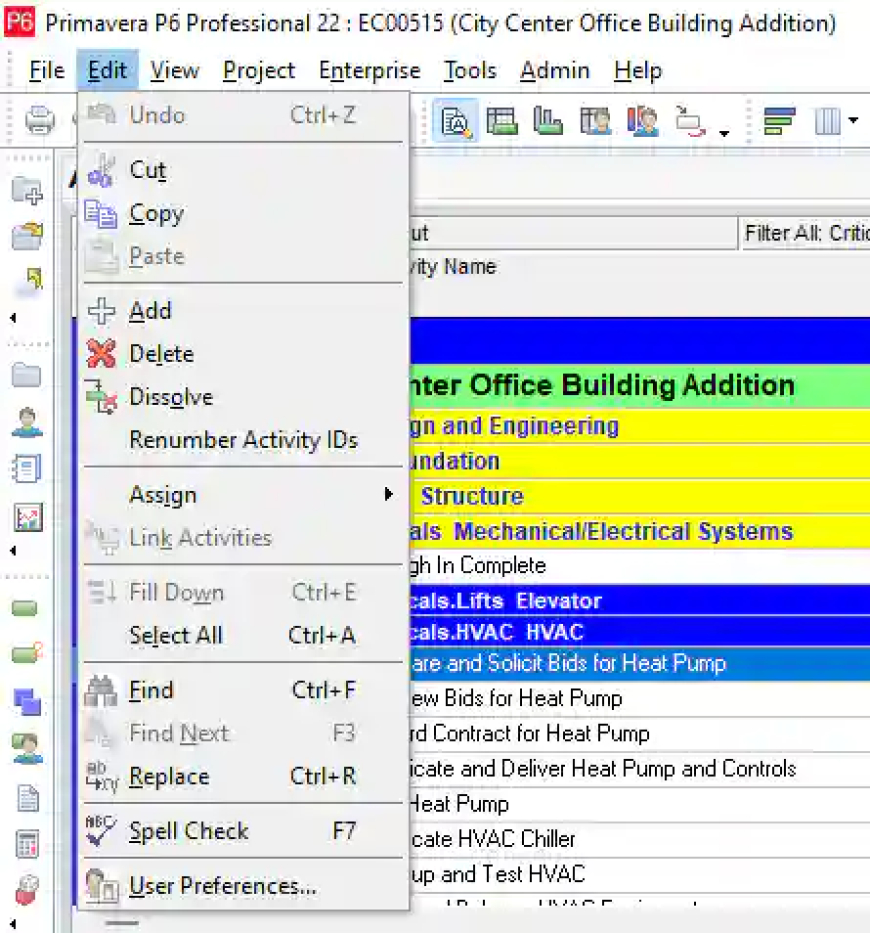
The Edit Menu contains several important options:
- Undo
- Cut
- Copy
- Paste
- Add
- Delete
- Dissolve
- Renumber Activity IDs
- Assign
- Link Activities
- Fill Down
- Select All
- Find
- Find Next
- Replace
- Spell Check
- User Preferences
Let us understand each option with practical examples.
Undo (Ctrl + Z)
Purpose
Reverses the last action performed.
Practical Example
Suppose you accidentally delete an activity: Pump Installation
Instead of recreating it manually, use:
Edit → UndoWhy Important
Helps prevent accidental schedule modifications.
Practical Tip
Use Undo immediately after a mistake. Once other actions are performed, recovery may become difficult.
Cut
Purpose
Removes selected information and places it in the clipboard.
Practical Example
Suppose an activity is created under the wrong WBS:
Electrical Cable Layinginside
Mechanical ErectionUse Cut and Paste to move it to the correct WBS.
Benefit
Maintains schedule organization.
Copy
Purpose
Creates a duplicate copy without removing the original data.
Practical Example
Many repetitive construction activities have similar structures.
For example:
- Pump Foundation
- Motor Foundation
- Compressor Foundation
Instead of recreating activities, copy an existing activity and modify the details.
Real Project Benefit
Saves considerable planning time.
Paste
Purpose
Inserts copied or cut data into a new location.
Typical Uses
- Duplicate activity structures
- Create repetitive schedules
- Move activities between WBS levels
Steel Plant Example
If ten similar pumps are being installed, planners often copy and paste activity sequences rather than creating each activity individually.
Add
Purpose
Creates a new activity, WBS item, resource assignment, or other record depending on the active window.
Shortcut
Insert KeyPractical Example
While preparing a shutdown schedule:
Pump Isolation
Motor Removal
Alignment
Testing
Commissioning
Each task can be added using the Add command.
Why Important
This is one of the most frequently used functions in Primavera P6.
Delete
Purpose
Removes selected records permanently.
Practical Example
Suppose duplicate activities exist:
Pump Alignment
Pump Alignment
Delete the duplicate entry.
Warning
Always verify relationships before deleting activities.
Deleting critical activities can affect:
- Logic network
- Critical path
- Schedule dates
Dissolve
Purpose
Removes selected activities while maintaining logical relationships.
Practical Example
Consider:
A → B → CIf activity B becomes unnecessary, Dissolve removes B while maintaining:
A → CWhy Useful
Prevents logic breaks in complex schedules.
Real Project Application
Often used during schedule optimization.
Renumber Activity IDs
Purpose
Automatically reorganizes activity numbering.
Practical Example
Original IDs:
MECH001
MECH010
MECH025
MECH100
After schedule development, numbering may become inconsistent.
Renumber Activity IDs creates a clean sequence.
Benefits
- Better reporting
- Easier tracking
- Professional schedule presentation
Industry Practice
Most clients prefer organized activity numbering systems.
Assign
Purpose
Assigns resources, roles, or costs to selected activities.
Practical Example
Assign:
- Mechanical Supervisor
- Crane
- Welder
- Electrician
to project activities.
Example
Activity:
Pump InstallationAssigned Resources:
1 Supervisor
4 Fitters
1 Crane
Why Important
Resource-loaded schedules depend heavily on this function.
Link Activities
Purpose
Creates logical relationships between activities.
Practical Example
Foundation → Grouting → Pump InstallationLink Activities establishes dependency relationships.
Benefit
Enables proper schedule calculations.
Practical Warning
Incorrect linking may generate unrealistic project durations.
Fill Down
Purpose
Copies values downward through selected rows.
Practical Example
Suppose multiple activities require:
Calendar = General Construction CalendarInstead of editing individually, use Fill Down.
Time Saving
Extremely useful in large schedules containing thousands of activities.
Select All
Purpose
Selects all records in the active window.
Uses
- Mass updates
- Bulk formatting
- Export preparation
Shortcut
Ctrl + AFind (Ctrl + F)
Purpose
Searches for specific activities or information.
Practical Example
A client asks about:
Accumulator InstallationInstead of scrolling through 5000 activities:
Edit → FindLocate the activity instantly.
Real-Life Benefit
Huge productivity improvement.
Find Next (F3)
Purpose
Moves to the next matching result.
Example
If several activities contain:
TestingFind Next navigates through each occurrence.
Replace (Ctrl + R)
Purpose
Replaces text automatically.
Practical Example
Suppose:
Area-Amust be changed to:
Zone-Athroughout the schedule.
Replace performs this update quickly.
Warning
Always review replacements carefully before applying globally.
Spell Check (F7)
Purpose
Checks spelling errors.
Practical Use
Before issuing schedules to:
- Clients
- Consultants
- Contractors
Run Spell Check.
Professional Advantage
Improves schedule quality and presentation.
User Preferences
Purpose
Configures personal Primavera settings.
Important Settings Include
- Date Format
- Time Units
- Currency
- Startup Options
- Layout Preferences
Practical Example
A planner may prefer:
DD-MMM-YYYYwhile another user prefers:
MM/DD/YYYYUser Preferences allow customization.
Why Important
Makes Primavera more comfortable and efficient to use.
Practical Example from a Steel Plant Project
Consider a High Pressure Descaling Unit (HPDS) installation project.
During schedule preparation:
Step 1
Use Add to create activities.
Step 2
Use Copy and Paste for repetitive piping activities.
Step 3
Use Assign to allocate manpower.
Step 4
Use Link Activities to create logic.
Step 5
Use Find to locate critical activities.
Step 6
Use Renumber Activity IDs before client submission.
Step 7
Use Spell Check before issuing the final schedule.
This workflow demonstrates how frequently planners use Edit Menu functions.
Best Practices for Using the Edit Menu
Before Deleting Activities
Verify:
- Relationships
- Resources
- Constraints
Before Using Replace
Review search results carefully.
Use Renumber Activity IDs
Before:
- Baseline submission
- Client review
- Progress reporting
Use Find Regularly
Especially in schedules containing more than 1000 activities.
Configure User Preferences Early
Establish company standards for:
- Dates
- Calendars
- Units
Common Mistakes Beginners Make
Excessive Copy-Paste
Can create duplicate logic and incorrect relationships.
Deleting Activities Without Review
May break schedule logic.
Ignoring User Preferences
Leads to inconsistent reporting.
Incorrect Replace Operations
Can unintentionally modify critical project information.
Poor Activity Numbering
Makes schedules difficult to review.
Quick Reference Table
| Edit Menu Option | Primary Use |
|---|---|
| Undo | Reverse Last Action |
| Cut | Move Data |
| Copy | Duplicate Data |
| Paste | Insert Data |
| Add | Create Records |
| Delete | Remove Records |
| Dissolve | Remove Activity Without Breaking Logic |
| Renumber Activity IDs | Organize Activity Numbers |
| Assign | Allocate Resources |
| Link Activities | Create Relationships |
| Fill Down | Copy Values Downward |
| Select All | Select Entire Dataset |
| Find | Search Data |
| Find Next | Continue Search |
| Replace | Modify Text |
| Spell Check | Check Errors |
| User Preferences | Personal Settings |
Conclusion
The Primavera P6 Edit Menu is one of the most frequently used menus by planning engineers during schedule creation and maintenance. Functions such as Add, Delete, Copy, Paste, Assign, Find, Replace, and Renumber Activity IDs play a crucial role in daily project planning activities.
For beginners, mastering the Edit Menu builds confidence and improves schedule development speed. For experienced planners, these tools help maintain schedule quality, consistency, and efficiency across complex EPC, construction, shutdown, and industrial projects.
Frequently Asked Questions (FAQ)
What is the shortcut key for Edit Menu in Primavera P6?
The shortcut key is Alt + E.
Which Edit Menu option is used to create a new activity?
The Add option is used to create a new activity.
What is the purpose of Renumber Activity IDs?
It organizes activity numbering into a logical and professional sequence.
What does Dissolve do in Primavera P6?
Dissolve removes an activity while maintaining the logical relationship between predecessor and successor activities.
Which option is used to search activities?
Use Find (Ctrl + F).
Why is User Preferences important?
User Preferences allows customization of date formats, units, layouts, and other settings according to company standards.
Related Articles
How to Download Primavera P6 for Free in 2026 (Step-by-Step Guide for Engineers & Students)
What is Primavera P6? Complete Guide for Beginners
Primavera P6 File Menu Explained: Complete Beginner Guide - Chapter 1