Primavera P6 Index Explained for Beginners
Complete Primavera P6 index explained with modules, features, and real project insights. Perfect guide for beginners and engineers.
 Suraj Manikpuri
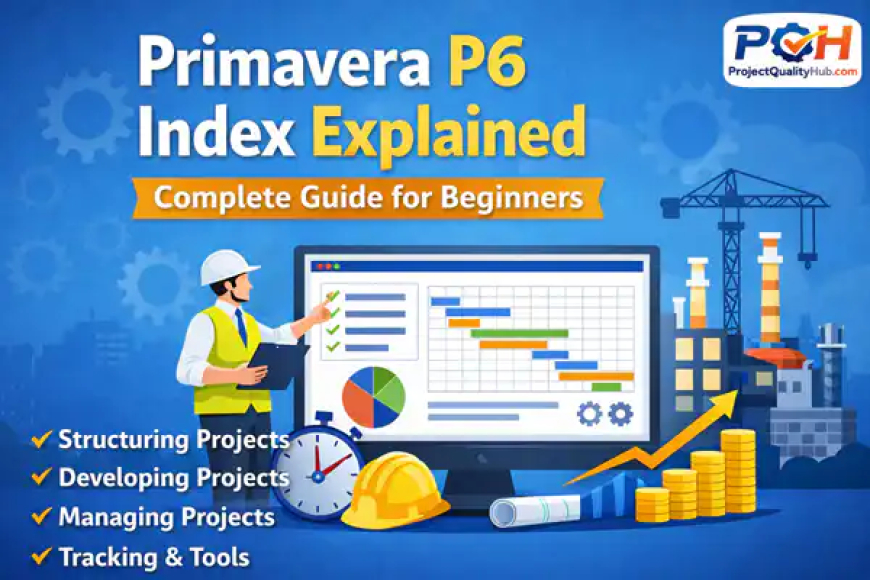
Primavera P6 Index Explained: A Complete Learning Roadmap
Introduction
When I first opened Primavera P6, honestly… it felt overwhelming 😅
So many options — EPS, WBS, calendars, resources, layouts — it’s easy to get confused.
But here’s the truth:
👉 Primavera P6 is powerful only when you understand its structure properly.
Think of it like a steel plant project (something you already relate to well 😉).
If the structure is not clear, execution becomes messy.
This article will give you a complete roadmap (index) of Primavera P6 in a simple Hinglish style, so you can understand:
✔ What to learn first
✔ How modules are connected
✔ How real project workflow works
1. Structuring Projects (Foundation of Everything)
This is where every project starts.
If this part is wrong → entire schedule will suffer.
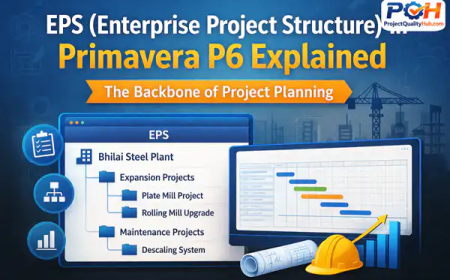
1.1 EPS (Enterprise Project Structure)
EPS is like company-level project hierarchy.
👉 Example:
Company → Plant → Project → Sub-project
1.2 WBS (Work Breakdown Structure)
Break project into manageable parts.
👉 Civil → Mechanical → Electrical → Commissioning
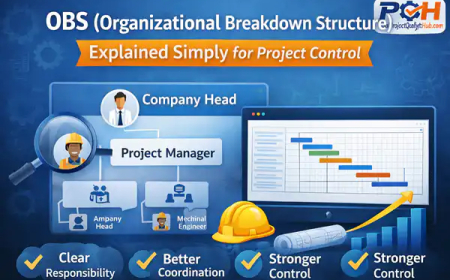
1.3 OBS (Organizational Breakdown Structure)
Defines who is responsible.
👉 Project Manager, Planner, Site Engineer
1.4 Codes (Project / Resource / Activity)
Used for classification and filtering.
1.5 Custom Fields
Add your own data (e.g., vendor name, package ID)
1.6 Calendars
Define working days (6-day work, shutdown days, etc.)
1.7 Resources & Roles
Manpower, machines, materials
1.8 Resource Curves
Defines how resources are consumed over time
2. Working with EPS (Project Setup Stage)
This is where you define project identity and settings.
Key things you control:
-
Project name & ID
-
Start & finish dates
-
Fiscal year (important for billing)
-
Default calendars
-
Resource rates
-
Activity types
👉 Example:
In your steel plant projects, setting correct calendar & cost account is critical for accurate planning.
3. Developing Projects (Actual Planning Starts)
Now the real action begins 🔥
3.1 Adding Activities
Define all tasks
3.2 Linking Activities
Create logic (FS, SS, FF relationships)
3.3 Assigning Resources
Attach manpower & equipment
3.4 Resource Curves
Adjust distribution (front-loaded, uniform, etc.)
3.5 Future Period Planning
Plan upcoming workload
3.6 Cost & Expenses
Add budgets and cost tracking
3.7 Activity Steps
Break tasks into smaller steps
3.8 Notebooks
Add notes (very useful in site coordination)
4. Managing Projects (Control Phase)
This is where planners prove their value 💯
4.1 Budgeting
Set cost baseline
4.2 Baselines
Compare planned vs actual
4.3 Updating Projects
Weekly/monthly updates
4.4 Reflections
Try “what-if scenarios”
4.5 Scheduling
Run schedule to calculate:
-
Critical path
-
Float
-
Project duration
4.6 Checking Schedules
Validate logic errors
4.7 Resource Leveling
Avoid overload of manpower/machines
4.8 Issues & Thresholds
Track problems and alerts
4.9 Risks (Advanced)
Identify project risks
4.10 Documents
Attach drawings, reports, etc.
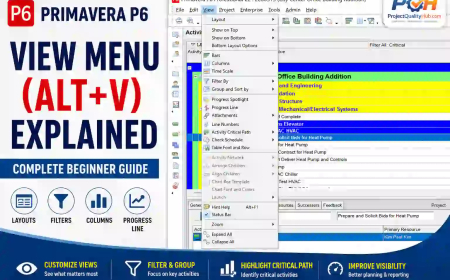
5. Customizing Activity Layouts (Visualization Power)
Primavera becomes powerful here 👇
-
Activity Table → Excel-like view
-
Gantt Chart → Timeline visualization
-
Network Diagram → Logic flow
-
Resource Graphs → Usage tracking
👉 This is what clients and management usually see.
6. Tracking Projects (Performance Monitoring)
You track:
-
Planned vs Actual
-
Delays
-
Resource usage
Tools include:
-
Project Table
-
Gantt/Profile
-
Resource analysis
7. Grouping, Filtering & Summarizing
This is where reporting becomes smart.
👉 Example:
-
Show only “Mechanical Work”
-
Filter delayed activities
-
Group by contractor
Very useful in review meetings.
8. Publishing Project Websites
Yes, Primavera can even share data online 🌐
-
Publish reports
-
Share schedules
-
Create project dashboards
Useful for client communication.
9. Tools (Advanced Productivity Features)
Hidden gems of Primavera 🔧
-
Global Change → bulk editing
-
Visualizer → advanced charts
-
Top-down estimation → quick planning
-
Job services → automation
10. Administration (System Control)
Used mostly by admins:
-
User access control
-
Security
-
Financial periods
-
Currency setup
👉 In big companies, this is handled by IT or planning head.
Practical Insight (From Real Projects)
In real EPC/steel plant projects:
👉 80% success depends on:
-
Proper WBS
-
Correct logic linking
-
Regular updates
👉 Not on fancy features.
Advantages of Understanding Primavera Index
✔ Clear learning roadmap
✔ Faster software mastery
✔ Better project control
✔ Improved job opportunities
Common Mistakes
❌ Jumping directly to activities
❌ Ignoring WBS
❌ Not setting calendars properly
❌ Not using baselines
Pro Tips (Real Experience)
👉 Start learning in this order:
-
EPS
-
WBS
-
Activities
-
Relationships
-
Scheduling
👉 Don’t try to learn everything at once.
👉 Practice with real project examples (like your plant projects)
Conclusion
Primavera P6 may look complex at first, but once you understand its index and structure, everything becomes logical.
👉 It’s not just software
👉 It’s a complete project control system
For engineers like you, especially working in steel plants and EPC projects, mastering Primavera P6 can seriously boost your career.
FAQs
1. What is Primavera P6 index?
It is the structured list of modules and features that define how Primavera P6 works.
2. Which module should I learn first?
Start with EPS and WBS, then move to activities and scheduling.
3. Is Primavera P6 useful for mechanical engineers?
Yes, especially in installation, shutdown, and commissioning projects.
4. How long does it take to learn Primavera P6?
Basic level: 2–4 weeks
Advanced level: 2–3 months (with practice)
5. Is Primavera P6 used in steel plants?
Absolutely. It is widely used for planning, shutdowns, and project execution.
Related Articles
- What is Primavera P6? Complete Guide for Beginners
- How to Download Primavera P6 for Free in 2026 (Step-by-Step Guide for Engineers & Students)
- PMP Certification Guide: Benefits, Eligibility & Exam